
How-to guide
Learn how to remove the background from your images in seconds with GO REMOVE. Follow this simple guide and discover everything the tool can do.
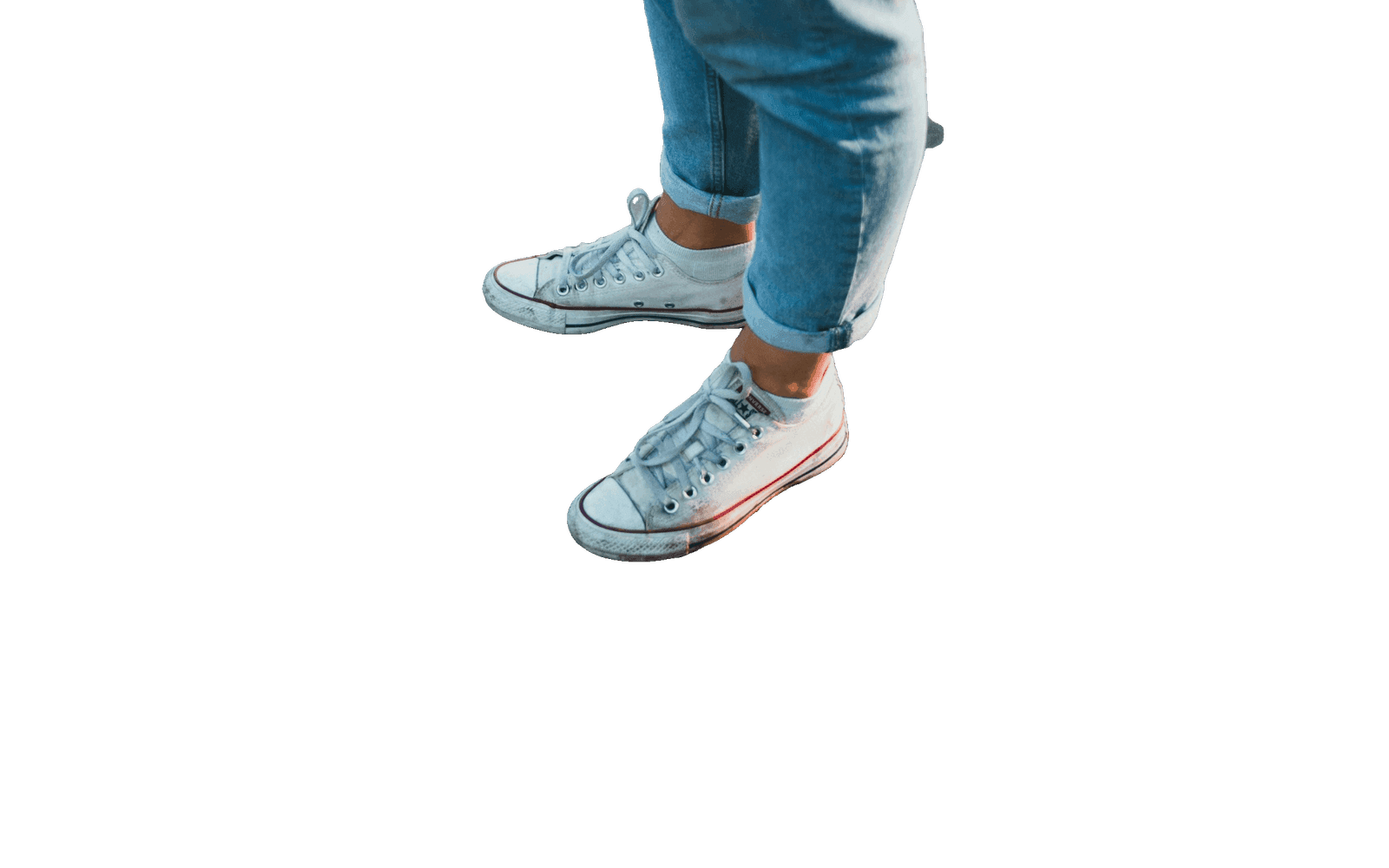

- Ultra fastResults in seconds
- High precisionEven on complex details
- All types of imagesProducts, people, animals…
- 100% secureYour images stay private
How do you use GO REMOVE?
In 5 simple steps, get an image with no background, ready to use.
Import your image
Drag and drop your file or select an image from your device.
JPG, PNG, WEBP — Up to 25 MB
The AI does the work
Our technology automatically analyzes your image and removes the background in seconds.
Adjust if needed
Refine the result with our editing tools if needed (brush, erase, restore).
Download your image
Get your image in high quality, as a PNG with a transparent background.
Reuse it anywhere
Use your image in all your projects: website, social media, presentations, ads and more.
Tutorials by use case
Discover practical guides tailored to your needs.

E-commerce
Learn how to create flawless visuals that boost your sales.

Social media
Create eye-catching content that stands out.

Portraits
Retouch your portraits in seconds.
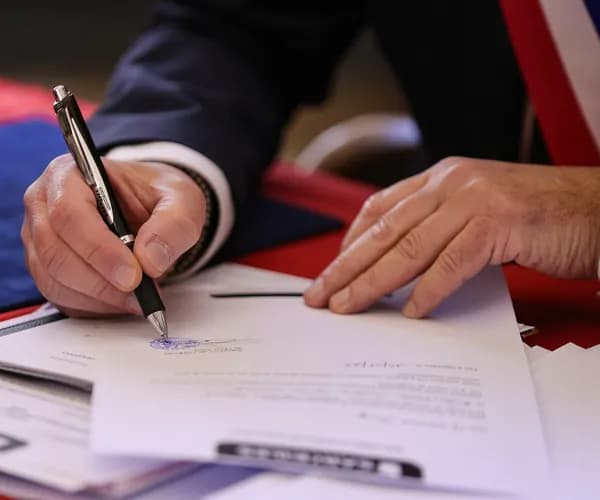
Documents
Isolate elements for your presentations.

Real estate
Showcase your properties with professional visuals.

Marketing
Create impactful visuals for your campaigns.
Tips and best practices
Follow these tips to get the best results.
Use a sharp image
A good-quality image gives a more precise, cleaner result.
Favor good contrast
A subject that contrasts well with the background is easier to detect.
Choose the right format
Use common formats (JPG, PNG, WEBP) for optimal processing.
Check the edges
Zoom in on the details and adjust if needed with the editing tools.
Customize the background
After removal, add a color or another image for a unique look.
Frequently asked questions
Find answers to the most common questions about using GO REMOVE.

- Responsive support
- Personalized advice
- Reply within 24 hours
- A team that listens